















Zonenverwaltung: Zonen anlegen und nutzen
Ein genauer Blick auf Divisionen (Länder) und Zonen in CodiCo: warum sie wichtig sind, wie Sie sie zeichnen, Kilometer- und Zone-zu-Zone-Preise sowie Zonenpriorität.
Das sehen Sie in diesem Video
Klicken Sie auf einen Zeitstempel, um das Video ab dieser Stelle abzuspielen.
Video-Transkript
0:01hello everyone in this video I want to explain what divisions are as we call the countries within our system what zones are how they work how to create them and why they’re needed first let me explain what divisions are divisions are what we call countries within our system so using our system you can mollya work Beyond just one country you can operate in multiple countries and offer your services there switching between countries is done at the top of your system in this dropdown click it to see a list of countries and you can add new ones for your work each country when selected like Belgium has its own orders for example in Belgium I have six orders now if I switch to Luxenberg I have zero orders there if I switch to the Netherlands I have zero orders if I switch to France I have no orders there
1:16if I go back to Belgium I see six orders our system divides sections by countries the system is divided by countries giving you a view of events in each country where you provide services in Belgium I see six orders I can also check the job section and see three orders in progress in Belgium in jobs we have orders accepted for execution assigned to taxi companies and drivers waiting for execution if I switch to Luxembourg I see no orders for execution now or soon in France I also have none back in Belgium I see three orders to be executed soon also companies companies are divided by countries you can view Partners other taxi companies you work with by each country in Belgium I have no partners in Luxembourg I have one in the Netherlands
2:33none in France none in Spain none in Belgium none the same applies to Company applications Company applications show incoming applications from other taxi companies or drivers wanting to work with us they fill out an application form and you decide if you want to work with them you see their data airports they operate in services and cars you decide whether to work with them the division by countries also applies to vehicles in each country we have our own vehicles in Belgium we have these in Luxembourg these in the Netherlands these in France different ones your Fleet plan can be divided by countries that’s correct because each country may have different cars classes settings and
3:48pricing what Remains the Same for all countries it’s the list of drivers no matter the country the list of drivers stays the same drivers are linked to companies not countries or divisions also the list of users it is not divided by countries and is always shown fully switching countries doesn’t change the full list of registered users another important point to see all orders companies or Vehicles choose all bookings at the top not a specific country in bookings you’ll see orders from all countries including Belgium Luxembourg Netherlands Ireland France Portugal Greece and so on choosing all booking shows all data orders jobs companies and vehicles across all countries see how many there are that’s how divisions work when adding a
5:04new taxi company specify the division it operates in specify the country where the company operates my taxi operates in the division Belgium let’s save something I didn’t remember I didn’t choose the time zone I didn’t specify everything let’s save Now understand all done the company is saved we told the system this company operates in Belgium in companies is switch to Belgium and you’ll see my taxi we see companies operating in Belgium that’s what divisions are
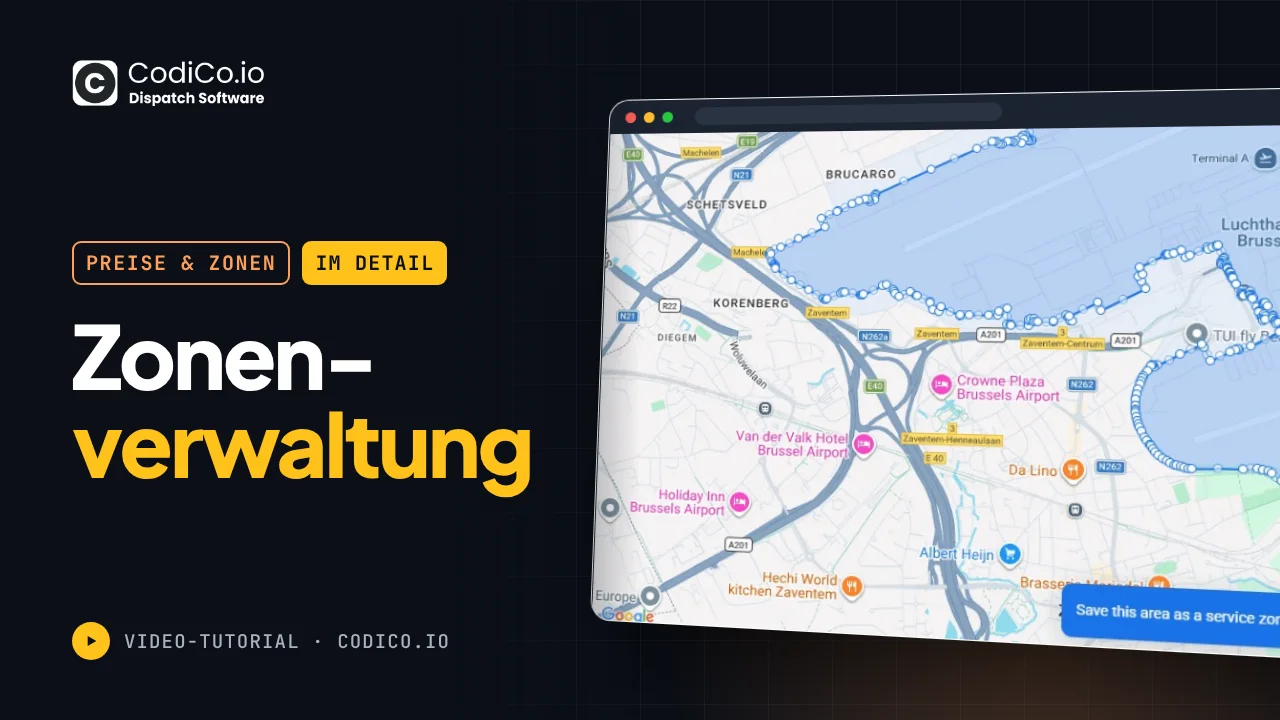
6:21for divisions meaning countries are where you provide services called divisions in the system how are they created to edit or make a new division scroll down a bit to the zones section and enter it in the zones section A map will open in the top right corner you’ll see tools for managing the section click the list icon to see all pre-created countries in our system for example click the I icon next to Belgium and it will highlight on the map click on Spain and it will highlight on the map click on France and it will highlight on the map to remove the Highlight click the cross icon and it will be removed you can also create your own let’s create Slovakia for example to create a new country add a country to
7:37the system there’s a drawing tool in the top left corner select it it turns dark and we connect the dots on the map by trial and error I’ll do it roughly just to show and explain how this feature works I’m connecting the dots in the end your first and last points should meet and the area will immediately highlight in red here we’ve now created or rather we’ve drawn the boundaries of a new division a new country now let’s save it for this we have a button with a save icon let’s click on it a popup window will appear where we can write the name of our new country our new division let’s call it Slovakia test also as you noticed there’s a checkbox for new Med Hood in this popup window what’s it for our system supports two methods for calculating order costs so when a client places an order
8:52the system estimates the trip cost Based on data from Google Maps considering the route its duration and time as as well as the class of car the client chooses and our system supports two types of estimation the first type is the standard one where the administrator sets the prices they want for different types of cars these can be fixed prices per kilometer rates or based on trip duration with possible discounts it also includes time-based pricing like a per minute rate plus special prices for trips between zones or within a specific Zone like from Zone a to Zone B the per kilometer rate might be one thing but from Zone C to Zone D it could be different and in zone five the per kilometer rate is fixed that’s the first method of cost calculation I’ll record a separate video with more details about it the second method is when your taxi partners set their own prices meaning they have the option in their personal account in their taxi company account to add their own prices including per
10:08kilometer rates prices for additional services like child Wan seats waiting time disabled access and so on they can specify their minimum trip cost per kilometer cost and different per kilometer rates depending on the trip length for example up to 30 km is one price over 30 km is another over 100 km is a third price and over 200 km they have a completely different per kilometer rate they can also set fixed prices for specific trips like a trip from point A to point B has a fixed price of €100 and a trip from point D to point B has a fixed price of 80 they can add all this in their personal account separate video with description of the company prices section and how companies can add their prices I will record and explain all this in more detail here I’m just giving you a brief overview of the functionality when the system receives a new order from users it will evaluate the cost of this order based on the prices set by your taxi Partners your
11:25partners other taxi companies so these are the two methods of cost calculation how to find out which method will be used to calculate the cost how to determine which method will be used to calculate the cost for a trip in this new country we are creating for this we have let’s go over it again let’s call this country Slovakia tees and here we have this option A checkbox it’s called new Med Hood if you set it up up the system will evaluate orders within or from this country using prices from your partner taxi companies that have added their prices to your system on the side these countries are marked with a small green flag labeled new a green flag with new means that in this country orders are evaluated using your partner’s prices this is handy when entering a new market when you enter a new country where you’ve never worked don’t know the zones or how trip prices are calculated but have trusted Partners you can ask
12:40them to add their correct prices into your system making this country special indicating that trip costs will be based on prices provided by your partners and the system will work accordingly in this case it’s very convenient if you know this country well have been providing Services there for a long time and want to use your own prices then remove this check mark let’s remove it now press okay if we scroll to the end of the list you can see our new country Slovakia test has been added we can deselect it or click the I icon to highlight it immediately now after adding the country we want to divide it into zones what are zones we can split the country by cities make airports separate zones and do the same for train stations bus stations tourist spots amusement
13:56parks any venues for events districts streets anything at all so we can create any zones of any shape anywhere within this country however we like why do we need this so that later you can set your specialized special prices for trips Within These zones to these zones or from these zones if you have a fixed price across the country like for an economy sedan and its base price is € 1.5 per kilometer Nationwide then you don’t need zones you can create one big Zone call it Slovakia and the price will be €1 1.5 per kilometer throughout Slovakia but if you have multiple zones or say in one city the price is € 1.5 per kilometer and in another city it’s €2 and a trip from one city to an airport is a fixed € 100 while a trip from another airport to a tourist spot is 3 per kilometer in this case you need zones meaning you need to divide the country
15:12into zones and then in the car settings you can specify which prices the system should use for trips between these zones I’ll show you this a bit later now let’s try to create a few test zones we’ve created the Slovakia test Country and here at the top you see another tab called Zone zones fixed prices let’s click on it we see that we don’t have any zones yet let’s draw one for example let’s draw this Zone and call it Zone one let’s draw another we need to deselect now let’s draw another Zone like this call it zone two draw a third Zone call it zone three and let’s draw one more a fourth Zone here and call it Zone
16:274 Zone 4 another thing when you create an airport when you create a new airport here in the airport section it automatically creates a Zone on the map the system highlights the airport and saves it as a separate Zone what do we have we have a new country called Slovakia test and in this country we have four zones Zone 1 Zone 2 Zone 3 and Zone 4 great let’s go to this country select Slovakia test from our list of Divisions go to the vehicle section Vehicles as we can see we don’t have any vehicles in this country yet we just created it let’s create our first vehicle call it test Saloon say it’s available say its base price Nationwide is €1 per kilometer and for for the return trip also €1 say the minimum trip price Nationwide is €10 and it can carry two passengers pieces of luggage two handlers two hand
17:43quads save and we’ve added out our first vehicle let’s go into it again across Slovakia test the base price for this test Saloon is EUR per kilometer minimum cost €10 but what if we want special prices between zones then we need to go to the zone to Zone pricing section here we can add special prices I say I have Zone one and from this Zone one anywhere anywhere specifically from Zone one anywhere my price per kilometer will be €2 and the return price will also be €2 and the minimum price will be €20 also I don’t want cash payments in this Zone save now it’s added that from Zone one anywhere these prices apply in One Direction only when you go from Zone one somewhere from Zone one anywhere the price per kilometer will be €2 and the minimum price will be €20 okay but that’s not enough for
19:00me I want to say that from Zone 2 to Zone 3 in back meaning from Zone 2 to Zone 3 and from Zone 3 to zone two I want my prices to be fixed and the fixed price is €100 and the return trip is also € 100 Eur 100 for both there and back so that it can’t be paid with a bank card save and please from Zone 2 to Zone 3 the arrows show a fixed price of €100 both ways also I want to say that from Zone 4 to Zone one the price per kilometer is €3 and for the return trip it’s €2 and the minimum price is €40 additionally I offer extra Services
20:16Airport pickup 5 disabled seating 5 child seats 5 ski equipment 5 pet transport 5 and waiting time € I accept all payment methods saving and here we see that we have the country Slovakia tees in this country the base price is € per kilometer but we have zones with special prices we said that from Zone one to anywhere the price is € per kilometer with a minimum of €20 we said that from Zone 2 to Zone 3 or vice versa the fixed price is €100 for the trip also we said that from Zone 4 to Zone 1 the system should calculate the trip at € per kilometer return at2 per kilometer with a minimum of40 saving that’s all after this our system will calculate all orders outside the zones at the base price of €1 per kilometer but orders Within These zones
21:33created by us will be calculated at the special prices ignoring the base prices another important Point sometimes zones overlap for example here if I set boss Direction and save the system will indicate a with record 4968 here it is 4968 record 4968 states that from Zone one to anywhere the cost is €2 per kilometer but here from Zone 4 to Zone 1 and vice versa the cost is €3 per kilometer so a trip from Zone 1 to Zone 4 conflicts with a trip from Zone 1 to anywhere as they are conflicting because Zone one includes Zone 4 what to do in this situation to explain simply let’s open paint and draw it visually for clarity suppose we have Zone one and we also have zone two and they
22:57overlap let’s make it green what to do if our order Falls here between two zones this is like the case with Zone 1 and Zone 4 here it is this is Zone one this is zone two and the order Falls between two zones each with its own special pricing settings so which prices should the system take should it take the price of Zone one or Zone 2 it doesn’t know because the zones are the same price is different and it doesn’t know which price to take for this our system has a concept called priority in this case if two zones conflict we can raise the priority of more specific zones by default all zones have priority zero but if I set Priority One here and save it you see that a trip from Zone 1 to Zone 4 has a higher priority than a trip from Zone one to anywhere this means if Zone One prices have priority zero and specific prices for Zone 2 have Priority One the system will calculate the order between two zones at Zone 2
24:13prices as its priority is higher it has Priority One and Zone one has priority zero this can be similar even with multip zones for example you might have a third Zone that overlaps like this it will work exactly the same way in this case so if you have Zone 3 and it has priority 2 the trip price will be evaluated at zone three prices if its priority is also zero the trip price will be evaluated at the prices of the Zone with the higher priority in this case it’s zone two so in our case here if we have such a conflicting moment where Zone one to anywhere is € but Zone one to Zone 4 is 3os with a higher priority of one then this trip will be evaluated at these prices and all other trips will be evaluated at the prices from this record I hope this is clear I was able to explain how Zone priorities work that’s basically it I think this is enough for you to
25:28understand the principle of Divisions understand why zones are needed we looked at how divisions are created how new zones are created how to save them and what they are used for we visual try to use these zones newly created by us for cost calculation for adding specialized prices to the system and I tried to visually explain how prioritization works and what to do if several zones overlap thank you all for your attention