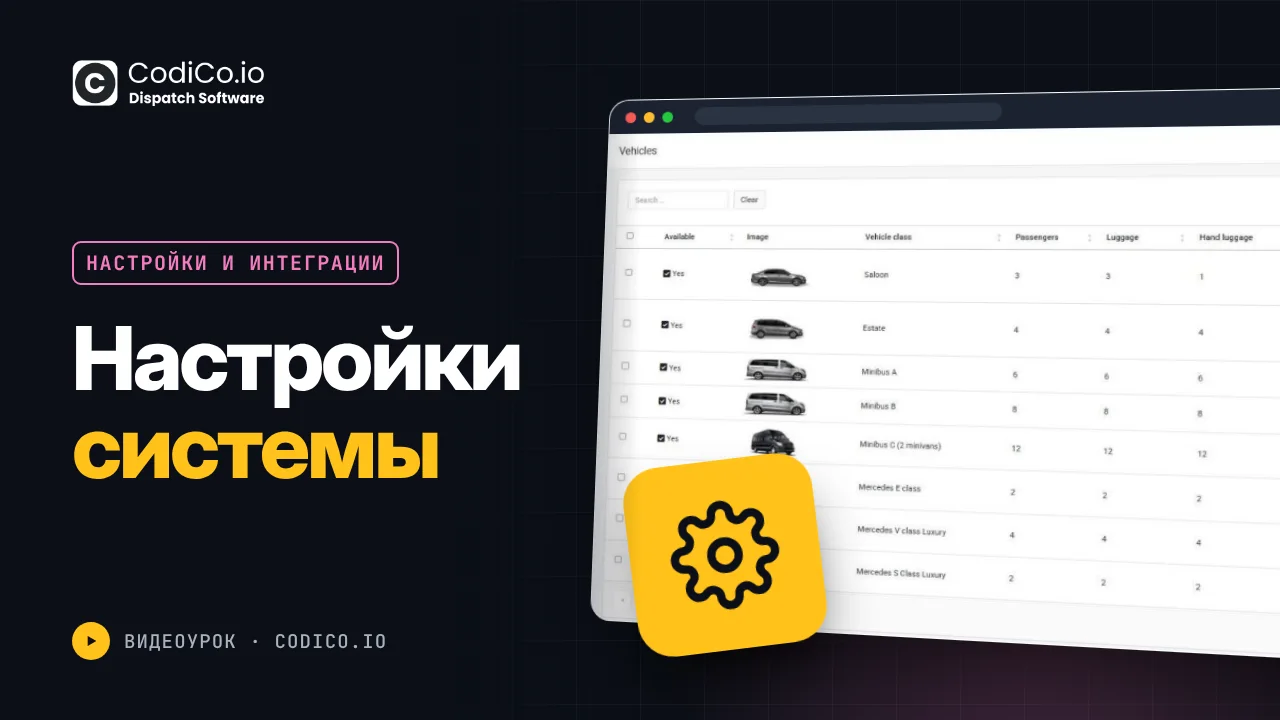
0:01hello everyone in this video I’ll talk about system settings why they’re needed how they work and show you where to find each one we’ll take a closer look at the settings section from our main navigation panel first log in as an admin enter your system and scroll down a bit to the settings section when you click it a list of subsections will appear this is what I want to go through in detail with you today and explain and the first subsection is the general subsection we’re already familiar with it so we’ll just quickly go over it here we see the main name of our system the contact person’s email the contact phone number and the contact person’s name next the main settings essential for the system’s correct operation are the Google Map API key Keys the Google Calendar key and the ACC key for the Google Calendar API for integration with Google Calendar this is our stripe interest rate these are our sntp settings for sending emails and then there are
1:17individual settings for privacy policy time of condition and custom messages from Custom scripts in the footer that you might want to add so you can add your own custom JavaScript scripts here for example for online support or an online chat the next section is shared taxi I explained what this is to you earlier it’s the ability to combine several trips into one and each passenger who agrees to combine gets a discount the system automatically finds available passengers based on the criteria you set in this shared taxi section here you set the criteria like how much time should be before the start of both orders or orders that can be combined how much time until the end the distance the time difference in minutes between them the distance in kilometers between pickup points and the maximum distance between drop off points
2:32the system searches based on these parameters for passengers who need a car around the same time are nearby and are going to roughly the same place either exactly or within a specified range when all these conditions match and both passengers agree to a shared ride the system will suggest they combine their trips and offer them a discount discounts are configured here in the system you can specify that if two passengers combine they receive either a percentage discount or a fixed amount off their fair in our case if two clients combine each gets a fixed discount of €1 15 on their trip if three CLI combin each receives a 20 discount if four passengers combine each gets a €25 discount and so on the system also considers picking up a client along the way if the first client’s route passes by the second and both agree to share the system accounts
3:48for this and can pick up the second passenger all of this is set up here in the the share taxi section where you can figure limits and discounts section companies here you can set up your reward and penalty system if a company driver and thus the company gets a negative review you can set many hours they can’t take new orders as a penalty if the company your partner gets a positive review you can specify a reward for them in this case the company becomes a priority for one hour this means your partner will receive orders when you have automatic assignment and sment in the system They will receive the order first as a priority in automatic order distribution the system sends orders first to Priority
5:03companies your priority Partners if these Partners refuse the order don’t take it or can’t take it after the allocated time the system offers the order to other suitable Partners this option makes the company with a good review a priority for 1 hour if you don’t want to use the reward punishment system just leave the fields empty that is don’t enter anything in them the next section is custom prices custom prices are the price limit set by your taxi Partners in the company prices section as I mentioned our system supports two types of trip cost calculations the first type is based on the cost set by the administrat for each vehicle the second type is based on prices specified in special divisions in special countries based on prices set by taxi companies your partners this means your partners the taxi companies enter some data that is they set their prices and you can limit them meaning you can
6:19say the max price per kilometer can’t exceed €7 and the max price per minute of travel can’t exceed €3 or0 .2 for example here you can set limits for them that they won’t be able to exceed the next section is mobile apps sorry again in the custom price section if you don’t want to set any limits you just set it to zero here it’s already indicated here that zero means no limits the next section is mobile apps in mobile apps you can upload set and save links to your mobile apps both for the client and the driver then in the client’s account you’ll see two banners download the app for Android and download the app for iOS the next section is the review section here you can configure a popup with extra Services where users your clients can leave their
7:35reviews for example our system ask the user to leave a review within our system after completing an order and if the review is positive meaning more than four stars the system can also ask them to leave a review on your other social Pages like Google Business trust pilot Facebook or elsewhere and this popup can be set up right here in the settings under reviews for example I set up Google review I created a new order for my user order id2 let’s try to complete it to show you clearly here is my order it is already assigned to my company I want to accept it on behalf of the company I want to accept it on behalf of the company let’s complete it right away here is order 25 we will immediately say it is completed order completed now when the user enters this
8:51order we see that this block has opened previously it was locked and I couldn’t leave comments but but now after the order is completed the system sent the user a thank you email with a request to rate the trip the email contains a link to their order when they go to their order and scroll down they see this block with the option to add their comment let’s add a comment radar trip and give it five stars and you see after we gave a positive result the system offers us another popup for an additional review on Google review you can edit this text through translations as you wish there can be any logos any links and so on let’s see how to set it up again here you give the name of the
10:07service here you specify the URL of your Google business page or trans pivot or elsewhere here you upload the logo and specify its width I specified 300 it can be 150 because as we see the logo is quite large it can be made half the size so you can specify one or 50 now after saving it will disappear and won’t appear appear again because I already gave my review it only appears on the first submission of a review and also I remind you that if the review was negative say three stars the popup will not appear the system determines whether the review is positive or negative if the review is negative there’s no need to send it to our additional page to leave another negative review if the review is positive and on our other Pages let’s return to the admin dashboard the next section is the booking section I have a separate detailed video about it so I won’t describe it it is already described in detail in a separate video therefore I will not cover this section in detail in this
11:22video the next subsection is localization here you can manage the available languages of the system you can disable or enable a language in the system making it available for translations and you can select it here to translate the entire system and the last section is the company menu the Company menu is displayed exclusively in the personal accounts of taxi companies that is your partners here you can provide useful information for them such as a link to documentation video guides or a contact form and so on this is just for new taxi companies you add who don’t know how everything is set up so they don’t ask you questions repeatedly they can easily go through the adaptation period and get familiar with the platform you can use this additional menu to provide them with some documentation in principle you can use it however you want it’s arbitrary you can give it any name in my example I named it help center and added three links one to documentation video guides and a contact form you can use anything
12:37here now I’ll show you how it looks in the company’s profile well here we are in the taxi company’s profile your partner’s profile and as I said at the top right corner they have access to an additional menu named help center when you click on it here are our sections documentation video guides video lessons yes of sorts and a link for feedback with you well that’s basically it we have thoroughly reviewed the settings section in our system and went through each one in detail