


 Subscribe
The Error That Appears Out of Nowhere
You upgrade PHP.
Or migrate your site.
Or spin up a fresh VPS and install WordPress from scratch.
Everything looks fine — until it doesn’t.
Suddenly, instead of your homepage, you see this:
Your PHP installation appears to be missing the MySQL extension which is required by WordPress.
It’s one of those messages that sounds simple… but rarely is.
In older guides, the explanation is almost always the same:
“Install the MySQL extension.”
In reality, especially in modern environments (PHP 8.2, 8.3, 8.4), this error usually has very little to do with a missing extension — and much more to do with how PHP is configured, loaded, or separated across environments.
Sometimes it appears:
- right after upgrading to PHP 8.3
- after switching from Apache to Nginx
- during a Docker rebuild
- after a server migration
- when CLI and FPM run different PHP versions
And occasionally — after
Quick 60-Second Diagnosis
Before reinstalling anything or changing configuration files, pause for a moment. When you see the message your php installation appears to be missing the mysql extension, the instinct is usually to start installing packages immediately. In practice, that often makes things worse.
The real goal here is simple: determine whether wordpress missing mysql extension is actually caused by a missing extension, or whether PHP is loading something different from what you expect.
In modern environments, especially with PHP 8.2 or 8.3, the problem is frequently about context rather than absence.
1. Check the Active PHP Version
Start with the basics. Which PHP version is actually running?
If you have SSH access:
php -v
This shows the CLI version. That’s useful, but not definitive. Your web server may be running a different PHP build entirely.
To confirm the web runtime, create a temporary file called info.php in your WordPress root directory:
<?php phpinfo();
Open it in the browser and check:
- the PHP version
- the Loaded Configuration File path
- the Server API (Apache, FPM/FastCGI, etc.)
It’s surprisingly common to see PHP 8.3 in CLI while the browser reports PHP 8.1. In that situation, php missing mysql extension wordpress may not be about MySQL at all. It may simply be the wrong PHP instance.
2. Confirm That MySQLi or PDO_MySQL Is Loaded
Inside the phpinfo() output, search for:
mysqlipdo_mysql
If neither appears, then PHP truly lacks MySQL support and the message your php installation appears to be missing the mysql extension is technically accurate.
If they do appear, the situation becomes more interesting. WordPress may still throw a missing mysqli extension wordpress error even though the extension exists. That usually points to a configuration mismatch rather than installation failure.
From SSH, you can also run:
php -m | grep -i mysql
Again, this checks CLI modules only. The web server may load a different set of extensions.
3. Verify the Loaded php.ini File
In the phpinfo() page, locate the line:
Loaded Configuration File
Make sure the path corresponds to the PHP version your web server is actually using.
Then search for:
extension_dir
If extension_dir points to an incorrect directory or to a different PHP build, extensions like mysqli or pdo_mysql may exist on disk but fail to load at runtime. In those cases, fix mysql extension error wordpress does not mean installing anything new. It means aligning PHP with its proper extension directory.
At this stage, one of three conclusions usually emerges:
- The extension is not installed at all.
- The extension is installed but not enabled for the active runtime.
- CLI and web PHP are running different configurations.
Only after identifying which scenario applies should you move forward. Otherwise, you risk solving the wrong problem.
Why This Error Is Misleading in Modern PHP Environments
At face value, the message your php installation appears to be missing the mysql extension sounds precise. It suggests something is absent, and that installing it will solve everything.
In 2026, that assumption is often wrong.
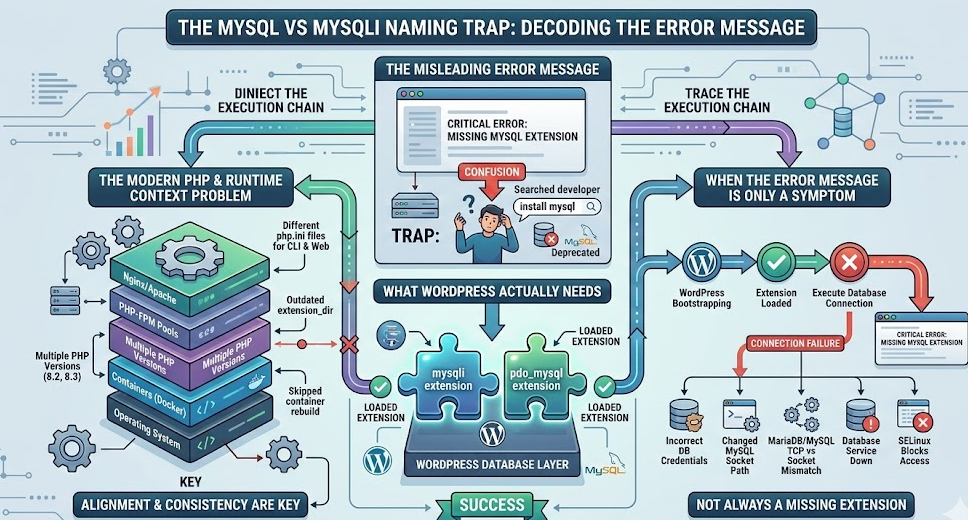
The original mysql extension has been deprecated for years and completely removed from modern PHP versions. WordPress does not use it anymore. Instead, it relies on mysqli or pdo_mysql, both of which are standard in PHP 8.x builds.
So when WordPress throws a wordpress missing mysql extension error today, it rarely means “you forgot to install MySQL support.” More often, it indicates that PHP failed to load the correct module at runtime.
This distinction matters.
Read also: How to Improve Time to First Byte (TTFB) for Your WordPress Site
MySQL vs MySQLi: The Naming Trap
The error message still references “MySQL extension,” which leads many developers to search for the wrong package. They try to install mysql, which no longer exists in PHP 8.2 or 8.3.
What WordPress actually needs is:
mysqli- or
pdo_mysql
If neither is available to the active PHP runtime, you may see variations such as missing mysqli extension wordpress or php missing mysql extension wordpress.
But the wording in the error message hasn’t evolved with PHP. That’s where confusion starts.
PHP 8.x and the Runtime Context Problem
Modern PHP setups are rarely simple.
You may have:
- multiple PHP versions installed
- separate PHP-FPM pools
- containerized deployments
- custom-compiled PHP builds
- different
php.inifiles for CLI and web
In these environments, fix mysql extension error wordpress is not about downloading a module. It’s about ensuring that the correct PHP runtime loads the correct extension from the correct directory.
For example:
- CLI may show
mysqliloaded - The web runtime may not
- Or PHP-FPM may point to an outdated
extension_dir - Or a container rebuild may have skipped
pdo_mysql
All of these scenarios trigger the same message.
That is why blindly installing packages is rarely the right first step. The real issue is almost always about alignment.
WordPress, PHP, and the database must operate within the same configuration context. When one piece shifts — especially during a PHP upgrade to 8.3 — the system breaks quietly, and WordPress surfaces this generic error.
When It’s Not Even About the Extension
There is another nuance that’s easy to overlook.
Sometimes the extension is loaded correctly, but WordPress still cannot connect to the database. In those cases, the message may appear because the database layer fails early in the bootstrap process.
This can happen when:
- database credentials are incorrect
- the MySQL socket path changed
- MariaDB is running on TCP while PHP expects a Unix socket
- the database service is down
- SELinux blocks access
From WordPress’ perspective, the database connection fails. The fallback assumption is missing MySQL support.
In other words, the error message does not always describe the root cause. It describes the symptom.
Understanding this context changes how you approach the issue. Instead of reinstalling extensions, you begin tracing the execution chain.
And that is where the real diagnosis starts.
Read also: How to Clear WordPress Cache When Your Changes Don’t Show Up
Where the Connection Breaks
When WordPress throws the message your php installation appears to be missing the mysql extension, something in the execution chain fails. The cleanest way to understand it is to look at that chain directly.
At a high level, the flow looks like this:
WordPress Core
      ↓
PHP Runtime (Web SAPI / PHP-FPM / Apache Module)
      ↓
MySQL Extension (mysqli or pdo_mysql)
      ↓
Database Engine (MySQL 8 / MariaDB)
If any link in this chain misaligns, WordPress cannot initialize the database layer. The result may be a wordpress missing mysql extension error, even if the extension technically exists.
Let’s examine where this chain usually breaks.
1. The Extension Is Not Installed
This is the simplest scenario. PHP was installed without mysqli or pdo_mysql.
This can happen when:
- building PHP from source without
mysqlnd - using minimal container images
- installing PHP manually on a VPS without the MySQL package
In that case, php -m and phpinfo() will not list mysqli or pdo_mysql. The error is accurate.
2. The Extension Is Installed but Not Enabled
Here, the extension exists on disk but is not loaded.
Common reasons:
extension=mysqliis missing inphp.ini- the extension is compiled but not activated
- different
php.inifiles are used for CLI and web - the wrong
extension_diris configured
This is where many php missing mysql extension wordpress cases fall. Developers see mysqli.so in the extensions folder and assume everything is fine. Meanwhile, PHP-FPM never loads it.
3. CLI and Web PHP Are Different
This is one of the most frequent causes in modern setups.
You run:
php -m | grep -i mysql
It shows mysqli.
Everything looks correct.
But the web server is using another PHP version entirely. That version may not have MySQL support enabled.
In this situation, the problem is not the absence of MySQL support. It is a runtime mismatch.
This is especially common after:
- upgrading to PHP 8.3
- switching hosting panels
- enabling MultiPHP in cPanel
- migrating from Apache to Nginx
The CLI and web environments drift apart silently.
4. The Extension Loads but the Database Layer Fails
This is the subtle case.
mysqli appears in phpinfo().
PHP is correct.
Configuration paths look fine.
Yet WordPress still throws fix mysql extension error wordpress type messages.
Here, the break happens lower in the chain:
- wrong socket path
- incorrect host in
wp-config.php - database service not running
- MariaDB upgraded and changed defaults
- permission issues on the socket file
From WordPress’ perspective, the connection fails during bootstrap. The error message assumes the extension layer is responsible.
Technically, it is not.
5. Containerized and Cloud Environments
In Docker or cloud deployments, the break may happen during build time.
For example:
- The base image does not include
pdo_mysql docker-php-ext-install mysqli pdo_mysqlwas skipped- A rebuild replaced the PHP layer but not the configuration
- Environment variables changed database connectivity
In those cases, wordpress missing mysql extension may appear after what seemed like an unrelated infrastructure update.
This is why the error is rarely isolated. It is almost always contextual.
When you understand the chain, you stop treating this as a simple installation issue. Instead, you identify which layer shifted.
That perspective makes the fix methodical rather than reactive.
The Real Causes Behind the MySQL Extension Error
By this point, you’ve likely identified where the chain breaks. Now the question becomes practical: what exactly needs to be corrected?
The answer depends entirely on your environment. A shared hosting setup behaves very differently from a custom VPS or a Docker deployment. The surface error may be identical, but the underlying cause varies.
Let’s go through the most common scenarios.
Shared Hosting Environments
On shared hosting, especially with cPanel or similar control panels, the issue is often related to PHP version switching.
Many hosting providers allow multiple PHP versions to coexist. You may upgrade to PHP 8.3 in the panel, but the domain may still be attached to an older handler.
If you see wordpress missing mysql extension on shared hosting, check:
- Which PHP version is assigned to the domain
- Whether
mysqliandpdo_mysqlare enabled in the PHP extensions list - Whether MultiPHP Manager is applying the correct handler
In cPanel, this usually involves:
- Opening Select PHP Version
- Confirming PHP 8.2 or 8.3 is active
- Ensuring
mysqliandmysqlndare checked
After saving, refresh the site. If the runtime switches correctly, the error disappears immediately.
If it does not, the domain may still be mapped to a different PHP pool.
This is where proper ongoing WordPress maintenance prevents silent configuration drift. Small version mismatches are easy to overlook until they break production.
VPS and Dedicated Server Setups (Ubuntu / Debian)
On VPS environments, the issue is usually more explicit.
If PHP was installed without MySQL support, you can verify:
php -m | grep -i mysql
If nothing appears, install the required module:
sudo apt update
sudo apt install php-mysql
Then restart the correct service:
sudo systemctl restart php8.3-fpm
Or, if using Apache:
sudo systemctl restart apache2
But here is where people often make a mistake.
They restart the wrong PHP-FPM version.
If multiple versions are installed, make sure you restart the exact service your web server uses. Restarting php8.2-fpm while Nginx points to php8.3-fpm changes nothing.
That mismatch alone can trigger php missing mysql extension wordpress errors even when the extension exists.
Nginx + PHP-FPM Mismatch
In modern setups, especially after PHP upgrades, configuration files sometimes still reference older sockets.
For example:
fastcgi_pass unix:/run/php/php8.1-fpm.sock;
If the system upgraded to PHP 8.3 but Nginx still points to the 8.1 socket, WordPress loads the wrong runtime.
In that scenario:
- CLI shows
mysqli - PHP 8.3 has MySQL support
- The web server continues using 8.1 without it
The error appears, and it looks like a missing extension.
In reality, it is a configuration pointer issue.
Docker and Containerized Deployments
Containerized environments introduce another layer.
If you are building from the official PHP image, MySQL extensions are not always included by default. You must explicitly add them during build:
RUN docker-php-ext-install mysqli pdo pdo_mysql
If that line is removed, skipped, or overridden during a rebuild, the next deployment may suddenly trigger your php installation appears to be missing the mysql extension.
This often happens after:
- base image upgrades
- switching from Debian to Alpine images
- CI/CD pipeline changes
The extension was never “removed” manually. The container simply rebuilt without it.
In complex environments involving API layers, SaaS systems, or AI integration in modern web platforms, these rebuild side effects are common. WordPress may be just one component in a larger architecture.
Multi-PHP Installations
This deserves its own attention.
Many servers run:
/usr/bin/php/usr/local/bin/php- multiple FPM pools
- separate pools per domain
You may confirm mysqli is installed globally, but the active pool may use a different php.ini.
This is where professional WordPress web development experience becomes relevant. Identifying which PHP runtime actually handles the request requires reading pool configuration files, not just checking modules.
When multi-version setups drift, WordPress does not care why. It simply reports a missing extension.
Across all these scenarios, the pattern is consistent. The problem is rarely about installing something new. It is about ensuring the correct runtime loads the correct extension within the correct configuration context.
The deeper the infrastructure, the more subtle the misalignment.
Read also: 5 Steps to Add 301 Redirects to WordPress via htaccess (Full Practical Guide)
Troubleshooting Table: Symptom → Root Cause → Fix
Below is a practical reference for the most common variations of the your php installation appears to be missing the mysql extension error.
| Symptom | Likely Root Cause | What to Check | Practical Fix |
|---|---|---|---|
php -m shows no MySQL modules | MySQL extension not installed | CLI module list | Install php-mysql or enable mysqli / pdo_mysql |
php -m shows mysqli, browser does not | CLI and Web PHP mismatch | phpinfo() vs CLI version | Align PHP-FPM version with web server |
mysqli visible in phpinfo() but WordPress fails | Wrong extension_dir | extension_dir in php.ini | Correct directory path and restart FPM |
| Error appears after PHP upgrade | Nginx or Apache pointing to old socket | Web server config | Update fastcgi_pass or PHP handler |
| Error after migration | PHP version switched silently | Hosting panel / MultiPHP | Reassign correct PHP version to domain |
| Error inside Docker | Extension not installed during build | Dockerfile | Add docker-php-ext-install mysqli pdo_mysql and rebuild |
| Database connection still failing | Socket or host mismatch | wp-config.php DB_HOST | Adjust host to correct TCP or socket path |
| Error appears randomly | Multiple PHP pools active | FPM pool configs | Verify active pool and restart correct service |
This table reflects what typically triggers wordpress missing mysql extension in modern PHP 8.x environments.
Notice something important.
In more than half of these scenarios, the extension is technically present. The issue is contextual — wrong runtime, wrong configuration file, wrong service restart.
That is why blindly reinstalling packages often solves nothing.
At this stage, if none of the rows above match your case, it’s worth looking at real-world behavior rather than theory.
Let’s examine what this looks like in practice.
Real Case: After Upgrading to PHP 8.3
A common situation looks like this.
A server runs PHP 8.1 without issues.
Everything works.
The administrator upgrades to PHP 8.3.
Immediately after the upgrade, WordPress displays:
your php installation appears to be missing the mysql extension
The instinct is to assume PHP 8.3 dropped MySQL support.
It didn’t.
What actually happened in many of these cases:
- PHP 8.3 was installed correctly
mysqliwas compiled and available- Nginx was still pointing to the old 8.1 socket
- PHP-FPM 8.3 was never restarted
From WordPress’ perspective, the database layer failed during bootstrap. The generic error message surfaced.
At CoDiCo, we’ve seen this pattern repeatedly during version transitions. The fix was rarely installing anything new. It was almost always about aligning the runtime layers after upgrade.
Once the web server pointed to the correct FPM pool and the service restarted properly, the error disappeared instantly.
Edge Cases You Might Not Expect
There are situations where everything appears correct on the surface. mysqli is visible in phpinfo(). The PHP version matches what the server is supposed to run. The database credentials in wp-config.php look accurate. And yet WordPress still reports your php installation appears to be missing the mysql extension.
At this point, the problem usually sits deeper in the stack.
One of the most overlooked causes is a socket mismatch. On many Linux systems, MySQL or MariaDB communicates through a Unix socket file rather than TCP. If the socket path changes during an upgrade, PHP may still load mysqli, but fail to establish a connection. WordPress then surfaces a generic wordpress missing mysql extension message, even though the extension itself works perfectly.
Another subtle issue appears after MariaDB upgrades. Default authentication methods or connection settings can shift quietly. If PHP expects one configuration and the database server now requires another, the handshake fails early. From the application layer, it looks like missing MySQL support. In reality, it is an authentication or transport problem.
SELinux can also interfere. On hardened systems, even when mysqli is enabled and properly loaded, security policies may prevent PHP from accessing the database socket. The extension is present, but the runtime cannot use it. The resulting error message is misleading, but technically consistent with a failed database initialization.
Custom-compiled PHP builds introduce yet another variable. If PHP was compiled without mysqlnd, or built against an incompatible client library, the module may appear installed but behave unpredictably. These cases are rare, but when they occur, standard troubleshooting steps fail because the issue is structural.
Container orchestration adds its own complexity. In distributed environments, the database host defined in wp-config.php may resolve differently inside the container network. A misconfigured service name or environment variable can break connectivity, and WordPress may once again report php missing mysql extension wordpress, even though the extension loads correctly inside the container.
The pattern across these edge cases is consistent. The visible error rarely describes the root cause. It signals that WordPress failed to initialize its database layer, and the extension layer is simply the first assumption.
By the time you reach this level of troubleshooting, the solution is no longer about installing packages. It becomes an exercise in tracing execution flow, verifying configuration alignment, and confirming that every layer communicates exactly as intended.
The good news is that once the true break point is identified, the fix is usually straightforward. The difficulty lies not in applying the correction, but in diagnosing the right layer.
Next, we’ll consolidate everything into a final diagnostic checklist so you can verify each layer methodically before escalating further.
Read also: A Simple, Clear Guide to Editing the functions.php File in WordPress
Final Diagnostic Checklist
If you want a clean, methodical way to close this issue without looping through random fixes, use the checklist below. It’s designed for the exact situation where WordPress insists your php installation appears to be missing the mysql extension, but the real cause might be hidden in runtime context.
- Confirm the PHP version in the browser via
phpinfo(), not only via SSH. If CLI and web versions differ, you’re not debugging the same runtime. - In
phpinfo(), verify thatmysqliorpdo_mysqlis listed. If neither appears, the extension is genuinely missing. - Check the Loaded Configuration File path. Make sure the
php.iniyou’re editing is the one actually loaded by the web runtime. - Locate
extension_dirand confirm it matches the active PHP build. A wrong directory can silently prevent modules from loading. - If you run PHP-FPM, confirm which pool and which socket your web server uses. After upgrades, Nginx or Apache configs often keep pointing to older sockets.
- Restart the correct service. Restarting “a” PHP-FPM service is not enough if multiple versions exist. The active one must be restarted.
- If the extension is loaded but the error persists, verify database connectivity: service status, host type (socket vs TCP), and whether the socket path changed.
- Re-check
wp-config.phpforDB_HOST. In container environments, the correct host is often a service name rather thanlocalhost. - If your system uses SELinux or hardened policies, confirm that PHP is allowed to access the database socket or network port.
- Remove the
info.phpfile once you’re done. Leaving it publicly accessible is a security risk.
If you can tick every point above and the site still fails, you are no longer in “missing extension” territory. At that stage, it becomes a deeper infrastructure or build consistency problem, not a WordPress update problem.
FAQ
Why does WordPress say the MySQL extension is missing if MySQLi is installed?
Because the message is legacy wording. WordPress needs mysqli or pdo_mysql, but if PHP fails to load them in the active runtime, or if the runtime context is mismatched, WordPress can still surface wordpress missing mysql extension errors.
Does PHP 8.3 still support MySQL?
Yes. PHP 8.3 supports MySQL through mysqli and pdo_mysql. If you’re seeing php missing mysql extension wordpress, it’s typically a configuration or runtime alignment issue rather than missing support in PHP itself.
How do I enable MySQLi in PHP?
On most systems, you enable it by installing the appropriate package (often php-mysql) or enabling the module in your panel. On Windows, it may require uncommenting extension=mysqli in php.ini. The important detail is enabling it for the PHP runtime that your web server actually uses.
Why does php -m show mysqli, but WordPress still fails?
Because php -m checks the CLI runtime. Your web server may be using a different PHP version, different php.ini, or a different PHP-FPM pool. This is one of the most common causes behind fix mysql extension error wordpress situations.
Can this error be caused by incorrect database credentials?
Yes. If WordPress fails early during database initialization, the error message can be misleading. Wrong credentials, a downed database service, or a socket mismatch can trigger similar symptoms even when mysqli is loaded.
Is this issue usually fixed by updating WordPress?
Sometimes, but not often in modern setups. In PHP 8.x environments, this error is more frequently tied to server configuration than to outdated WordPress core files.
Closing Note
In most real cases, your php installation appears to be missing the mysql extension is not a WordPress problem and not a “reinstall PHP” problem. It’s a signal that one layer in the PHP runtime chain is out of sync. Once you identify which runtime is actually serving the request and confirm mysqli or pdo_mysql is loaded there, the fix is usually direct.
At CoDiCo, the fastest wins almost always come from verifying runtime alignment first, not from installing more packages.