


 Subscribe
Changing a domain name is a serious step and definitely not something you should rush into. Still, for many businesses, it’s unavoidable — especially during a rebrand or a company name change.
At first glance, migrating a WordPress website to a new domain can feel like a complex and risky task. In reality, the technical process itself is fairly straightforward when done correctly.
The real challenge is making sure the move doesn’t undo all the SEO value you’ve built over time.
In this guide, we’ll walk you through how to migrate your WordPress website to another domain, set up the right redirects, and make sure your search visibility remains as stable as possible throughout the transition.
You’ll learn how to implement proper 301 redirects so both users and search engines are seamlessly forwarded to your new domain, as well as how to check for broken links after the move.
In short, this guide covers everything you need for a smooth and SEO-conscious website migration.
Why migrate a website to a new domain?
We already touched on one of the most common reasons in the introduction, but there are several other situations where moving to a new domain makes sense.
Some of the most typical reasons include:
- Rebranding the business – When a company changes its brand identity, the website should follow suit. Migrating to a new domain allows you to align your online presence with your new name or positioning without rebuilding the site from scratch.
- Upgrading to a better domain name – Let’s be realistic: most strong domain names are already taken. If you manage to acquire a more relevant or memorable domain through an auction or expired domain marketplace, migrating your website is often worth the effort.
- Consolidating hosting and domain management – From a technical standpoint, it doesn’t matter much if your domain registrar and hosting provider are separate. That said, managing both in one place can simplify administration and reduce friction over time.
There are plenty of other valid reasons to migrate a WordPress website to another domain, but these examples illustrate the most common scenarios.
Just keep in mind: this guide focuses on moving to a new domain, not switching web hosts. Hosting migrations follow a different process and deserve a separate guide altogether.
Before you migrate your WordPress website
Before starting the migration, there are a few important things you should be aware of.
First, you’ll need to create a database for the new domain. We’ll guide you through this step by step, but it’s essential to follow the process carefully to avoid data issues.
Second, you’ll need to make changes to your .htaccess file. Again, we’ll explain exactly what to do, but it’s good to know in advance that some manual configuration is required.
Finally, expect a small and temporary SEO impact. Even with properly configured permanent redirects, it’s normal to see a short-term drop in rankings and traffic. In most cases, this stabilizes and recovers over time — but it’s something you should plan for.
Read also: 5 Steps to Add 301 Redirects to WordPress via htaccess (Full Practical Guide)
Check your new domain and DNS settings
Before starting the migration, make sure your new domain is correctly connected to your hosting environment. This step is often overlooked, but it’s essential for a smooth transition.
At this stage, you should confirm that the domain is properly pointed to your server using the correct DNS records. Depending on your setup, this may involve updating the A record or changing nameservers at your domain registrar.
Once DNS changes are applied, open the new domain in your browser and check that it resolves correctly. If the domain does not load or points to the wrong location, the migration process will not work as expected.
Keep in mind that DNS propagation can take some time. In most cases, changes apply within a few hours, but in rare situations it may take longer. Make sure the domain is fully active before moving on to the migration steps.
How to migrate your WordPress website to another domain
Before jumping into the actual migration steps, the first decision you need to make is how you want to handle the move.
Manual or automatic migration?
There are two primary ways to migrate a WordPress website to a new domain:
Plugin-based migration – Also referred to as automatic migration, this approach uses a WordPress plugin to handle most of the technical work. It’s faster and easier to manage, making it ideal for users with limited technical experience. The trade-off is reduced control over the finer details of the migration process.
Manual migration – This method requires more hands-on involvement but offers complete control over every step of the migration. It’s better suited for advanced users who want full visibility into how files, databases, and settings are handled.
Since this is a complete guide, we’ll walk through both approaches. However, for most WordPress users, a plugin-based migration is typically the safest and most practical option — especially if you’re not comfortable working with WordPress internals.
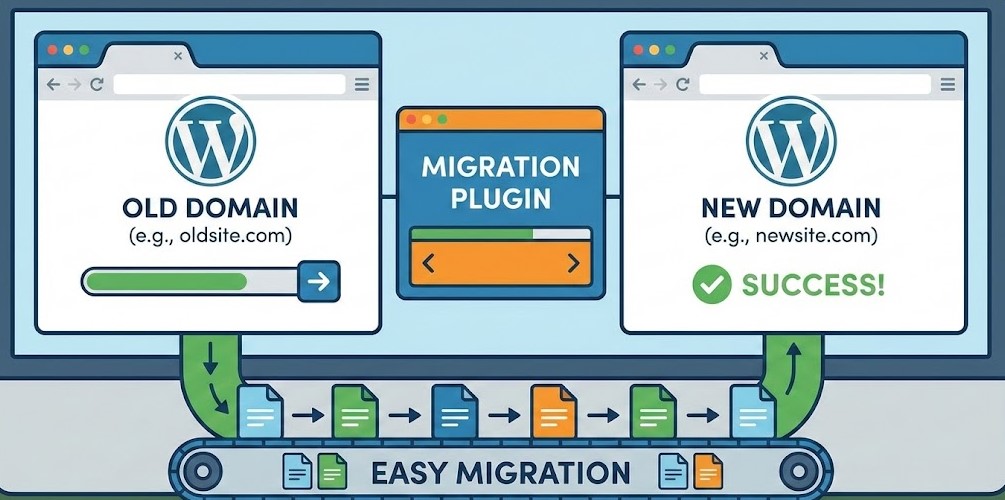
How to migrate your WordPress website to another domain using a plugin
Since this approach works well for most WordPress users, it makes sense to start with the plugin-based migration process.
The idea behind this method is simple. A migration plugin handles the heavy lifting, while you focus on preparing the site and checking that everything works as expected after the move.
During this process, you will:
- Take a full backup of your WordPress website
- Create a database for your new domain
- Use the Duplicator WordPress plugin to move your site
- Add a permanent 301 redirect from the old domain
- Notify Google about the domain change
- Test all links to make sure nothing is broken
To complete these steps, you’ll need access to your hosting control panel, such as cPanel, or an FTP client like FileZilla. These tools allow you to manage files, databases, and redirects correctly during the migration.
Create a backup of your WordPress website
Before making any changes, it’s important to create a full backup of your website so you’re protected if something goes wrong.
The Duplicator plugin generally works reliably and shouldn’t lose any files, but having a backup gives you extra peace of mind.
- Select Duplicator from the left menu in your WordPress dashboard
- Click the Create New button in the top right corner
- On the next screen, click the blue Next button and wait for the scan to complete
- If all checks show green, click the blue Build button and allow the process to finish
- On the final screen, select One-Click Download to save the backup to your computer
Once the process is complete, you’ll have a full copy of your website, including theme files, plugins, uploads, permalinks, and everything else required to rebuild the site if needed.
Create the WordPress database for your new domain name
Setting up the database is the most hands-on part of the migration process. It may look a bit technical at first, but if you follow the steps carefully, it’s a straightforward task.
For this step, you’ll need your web hosting login details, as all actions take place inside your hosting control panel.
- Log in to your cPanel or your web host’s control panel
- In the Database section, select MySQL Databases
- Under New Database, enter a clear and meaningful name
- Click the Create Database button
- Return to the MySQL Databases screen and scroll down to the MySQL Users section
- In the Add New User section, create a new database user and make sure to save both the username and password
- Scroll down to Add User to Database and select the user you just created in the User field
- Choose the new database you created from the Database field
- Click the Add button to confirm the connection
- Keep a secure record of the database name, username, and password, as you’ll need these details later in the migration process
Read also: How to Improve Time to First Byte (TTFB) for Your WordPress Site
Migrate to your new domain name
At this stage, you’re ready to move your WordPress website to the new domain name.
This step assumes that the new domain is already connected to your hosting account. Because hosting providers handle domain linking differently, the exact setup process can vary, and it’s not something we can cover in a universal way.
If you’re unsure whether the domain is correctly linked, it’s best to check directly with your hosting provider and follow their specific instructions.
Once everything is set up properly, you should see a folder on your hosting account that matches the name of your new domain. This folder will be used as the destination for your migrated website.
In this example, we’re using cPanel, but you can complete the same steps using FTP if that’s what you’re more comfortable with.
- Log in to your web hosting account and open cPanel
- In the folder list on the left, locate the directory that matches your new domain name
- Select that folder and click Upload at the top of the screen
- Choose the Installer and Archive files generated by Duplicator and downloaded earlier
- Upload both files to the folder of your new domain
- Open your browser and go to https://www.yournewdomain.com/installer.php, replacing yournewdomain with your actual domain name
- You should now see the Duplicator interface showing Step 1 of 4: Deployment
- Click the blue Next button to begin the installation
- On the next screen, enter your database details. Use your new database name, set the Host to localhost, and add the user credentials you created earlier
- Carefully review all information to ensure everything is correct, then click the blue Next button
- After the files are deployed, review the details on the following screen and click the blue Next button again
- Finally, select the blue Admin Login button to access your WordPress dashboard on the new domain
Everything should now be properly set up, and you should see the familiar WordPress dashboard with all your plugins, pages, and posts exactly as they were before the migration.
Ensure SSL and HTTPS consistency
Once your website is accessible on the new domain, the next step is to make sure it is secured with a valid SSL certificate and consistently loads over HTTPS.
Most modern hosting providers offer free SSL certificates, but they are not always enabled automatically for new domains. Before proceeding, confirm that SSL is installed and active for your new domain.
Open the new domain in your browser and check that it loads using https, not http. You should also see a secure lock icon in the address bar. If the site loads without HTTPS or shows security warnings, this must be resolved before moving forward.
It’s equally important to ensure there are no mixed content issues. This happens when some resources such as images, scripts, or stylesheets are still loaded over HTTP. Mixed content can trigger browser warnings and negatively affect both user trust and SEO.
Finally, confirm that all redirects point to the HTTPS version of your new domain. Permanent redirects should send users and search engines directly to secure URLs to avoid unnecessary redirect chains.
Once SSL is properly configured and HTTPS is enforced across the site, you can continue with the remaining migration steps knowing your website is secure and search engine friendly.
Update the site URL in WordPress
To make sure WordPress works correctly with the new domain, the site address must be updated in the admin panel.
- Navigate to Settings > General in your WordPress dashboard
- Update the WordPress Address URL and Site Address URL so they match the new domain
- Scroll down and click Save Changes to apply the update
This step ensures that WordPress loads content, media files, and internal links using the new domain.
Example of a permanent redirect configuration
To redirect visitors and search engines from the old domain to the new one, a permanent redirect must be in place. Below is an example of how such a redirect can be configured at the server level.
RewriteEngine On
RewriteRule ^(.*)$ https://www.newsite.com/$1 [R=301,L]
This example demonstrates how all incoming requests are redirected to the new domain while preserving the original URL structure. A permanent redirect helps maintain search visibility and prevents users from landing on broken or outdated links.
Notes on redirect setup
The code shown above is provided as an example and may not need to be added manually in every case. Depending on the hosting environment, redirects can also be configured through hosting control panels, server settings, or CDN services.
What matters is that a permanent redirect is correctly implemented so that traffic and search engines are seamlessly forwarded to the new domain.
Adding permanent redirects for SEO
Adding permanent redirects to your old domain helps search engines understand that your website has moved to a new address rather than gone offline. It also instructs search engines to send users to your new domain and gradually transfer SEO signals to the updated URLs.
After a domain change, it’s normal to see a slight drop in visibility and small ranking fluctuations in search engine results pages. In most cases, this impact is temporary and stabilizes once redirects are fully processed.
Below is a simple and effective way to add permanent 301 redirects to minimize potential SEO losses.
How to add permanent redirects
- Log in to your old domain directory using cPanel or an FTP client
- Locate and select the .htaccess file
- Open the file for editing
- Add the following example redirect rules and save the file
#Options +FollowSymLinks
RewriteEngine On
RewriteRule ^(.*)$ https://www.newdomainname.com/$1 [R=301,L]
Before saving, replace newdomainname with your actual new domain.
This redirect configuration forwards visitors from the old domain to the corresponding pages on the new domain while signaling search engines to transfer indexing and SEO value to the new URLs.
Tell Google you have moved domain
After updating your site and setting up redirects, the next step is to notify Google about the domain change. This helps Google understand that your website has moved to a new address and prevents it from treating the old domain as inactive or removed.
Once Google is informed, it can start crawling and indexing your content under the new domain more efficiently. Since domain migrations are a common scenario, Google provides a dedicated Change of Address tool within Google Search Console to support this process.
Before proceeding, make sure that your permanent redirects are already in place.
How to notify Google about the domain change
- Open the Google Change of Address tool in Google Search Console
- Select the website you are moving from under the Search property section
- In the Update Google area, open the dropdown menu and choose Add property
- Enter the URL of your new domain and select Validate and Update
Google will then run a series of checks to confirm that the new domain is accessible, properly configured, and correctly linked to the old one. If everything is set up correctly, you will be guided through a short confirmation process to complete the update.
Update sitemap and canonical URLs
After completing the domain change and notifying Google, it’s important to update your XML sitemap and review your canonical URLs. This helps search engines understand which version of your pages should be indexed under the new domain.
If you are using an SEO plugin, generate a fresh sitemap that reflects the new domain and submit it in Google Search Console. This allows Google to discover updated URLs faster and process the migration more efficiently.
At the same time, check that all canonical URLs now point to the new domain. Canonical tags still referencing the old domain can confuse search engines and slow down the consolidation of rankings after the move.
You should also make sure there are no mixed signals between redirects, canonicals, and the sitemap. All of them should consistently reference the HTTPS version of the new domain.
Once the sitemap is updated and canonical URLs are verified, search engines can index your website more confidently and attribute SEO signals to the correct domain.
Update analytics and tracking tools
After migrating your website to the new domain, it’s important to review any analytics and tracking integrations connected to your site. Domain changes can prevent data from being recorded correctly if settings are not updated.
Check that tools such as Google Analytics, Google Tag Manager, advertising pixels, and email forms are now tracking activity on the new domain. In some cases, you may need to update domain settings or verify the new URL inside each platform.
Ensuring your tracking tools are correctly configured helps you maintain accurate data, measure performance, and confirm that traffic and conversions are working as expected after the migration.
Almost there
With the domain change submitted to Google, only one final step remains. Review your website carefully to identify and fix any broken links. This final check helps ensure a smooth user experience and supports proper crawling and indexing under the new domain.
Check your website for broken links
The backup and migration process should preserve your internal links, and the permanent redirect configured earlier should ensure that visitors are forwarded correctly. However, it’s still important not to rely on assumptions alone.
As a final step, take time to check your website for broken links. This is a good maintenance practice in general and especially important after a domain change.
To do this, use an online broken link checker tool.
- Open a trusted broken link checking website
- Enter your website URL into the provided field and complete the security verification
- Click the option to start scanning for broken links
The tool will scan your website and display a list of pages where potential broken links are detected.
Review each listed page or post carefully and update or replace any links that are no longer working. Fixing these issues helps maintain a smooth user experience and ensures search engines can crawl your site without errors.
You’re all set
Once broken links have been addressed, the domain migration process is complete. At this point, you can confidently inform customers, partners, and your wider audience about your new domain, knowing your website is fully functional and properly configured.
Migrating a WordPress website manually requires more time and attention compared to automated methods, but it offers greater control over every stage of the process. This approach is especially useful when you want to fully understand what changes are being made and ensure nothing important is overlooked.
Below is an overview of the key steps involved in a manual WordPress domain migration.
During this process, you will:
- Take a complete backup of your WordPress website
- Export and update your WordPress database
- Copy all website files to the new domain directory
- Configure the database to match the new domain name
- Update WordPress settings to reflect the new domain
- Set up permanent three zero one redirects to the new domain
- Notify Google about the domain change
- Check the website for broken links after migration
Following these steps in order helps ensure a smooth transition to the new domain while preserving website functionality, search visibility, and user experience.
Read also: The Ultimate Guide to Google Core Web Vitals for WordPress
Take a full backup of your WordPress website
Before making any changes to your website, it is essential to create a full backup. Since the migration process involves working with website files and the database, having a backup ensures you can restore everything quickly if something goes wrong.
If you have already reviewed the steps outlined earlier, you can follow the same approach here. Use a reliable backup solution such as a WordPress backup plugin or your preferred hosting backup tool.
A complete backup should include both your website files and the database. This ensures that all content, settings, and configurations are safely stored before you proceed with the migration.
Once the backup is completed and verified, you can move on to the next step with confidence, knowing your website data is securely protected.
Export your WordPress database
Since you are only changing the domain name and not the web hosting, exporting the database is not strictly required. However, keeping a full copy of your database can be helpful, so this step should be considered optional but recommended.
To export your WordPress database, follow these steps:
- Log in to your web hosting account and open the cPanel or an alternative control panel
- Navigate to the Databases section and select phpMyAdmin
- Choose your WordPress database from the list on the left and click Export in the top menu
- On the next screen, keep the default export settings and select Go
- Download the generated SQL file and save it in a secure location on your computer
Having this database export gives you an additional safety layer and allows you to restore or review your data if needed during the migration process.
Copy your files to your new domain folder
To copy your website files to the new domain, you can use your preferred FTP client or the cPanel File Manager. Both options work well, but using cPanel File Manager is often simpler and more convenient.
The steps below describe the process using cPanel File Manager.
- In cPanel File Manager, select your old domain directory from the left-hand menu
- Click Select All at the top to highlight all files and folders
- Choose Compress from the top menu and select Zip Archive as the compression format
- Confirm the action by selecting Compress Files
- Once the archive is created, select the new .zip file and choose Download
- Next, select your new domain folder from the left-hand menu
- Click Upload at the top and wait for the upload process to complete
- After uploading, select the .zip file inside the new domain directory and choose Extract
Once extraction is complete, all website files should be unpacked correctly. At this point, the contents of your new domain folder should look identical to those of the old domain, ensuring your website structure remains unchanged.
Configure your WordPress database with the new name
At this stage, you need to update a few values in your WordPress database so the system correctly recognizes your new domain name. This ensures that WordPress loads pages, media, and internal links using the updated URL.
Follow the steps below to make these changes manually.
- Log in to cPanel and open the Databases section
- Select phpMyAdmin and choose your WordPress database from the list on the left
- Locate the entry named siteurl and replace the old domain with the new domain
- Save the change
- Find the entry named home and update the old domain to the new domain
- Save the change
Once these values are updated and saved correctly, WordPress should now function properly under the new domain name.
Optional SQL method for automatic updates
Instead of updating values one by one, you can also apply the changes automatically using an SQL query. The example below demonstrates how this can be done.
UPDATE wp_options
SET option_value = REPLACE(option_value, 'oldurl.com', 'newurl.com')
WHERE option_name = 'home' OR option_name = 'siteurl';

UPDATE wp_posts
SET guid = REPLACE(guid, 'oldurl.com', 'newurl.com');

UPDATE wp_posts
SET post_content = REPLACE(post_content, 'oldurl.com', 'newurl.com');

UPDATE wp_postmeta
SET meta_value = REPLACE(meta_value, 'oldurl.com', 'newurl.com');
Before running the query, replace oldurl.com with your previous domain and newurl.com with your new domain. This example shows the general logic and should be adapted carefully to match your database setup.
Configure WordPress with the new name
The next step is to update your WordPress configuration so it fully reflects the new domain name. This ensures consistency between WordPress settings and the database configuration.
Start by editing the WordPress configuration file.
- Open cPanel File Manager and navigate to your new domain folder
- Locate the wp-config.php file, right-click it, and select Edit
- Find the line defining WP_SITEURL and replace the old domain with your new domain
- Find the line defining WP_HOME and replace the old domain with your new domain
- Save the file after making the changes
Once the configuration file is updated, log in to your WordPress dashboard using the new domain name.
- Go to Settings > General in the WordPress admin panel
- Update both the WordPress Address URL and the Site Address URL to match the new domain
- Select Save Changes at the bottom of the page to apply the updates
At this point, WordPress settings and the database should be aligned, and both should correctly reference your new domain name. This confirms that your website is now fully configured to operate under the updated domain.
Set up 301 redirects to your new domain
Follow the steps outlined earlier to add a permanent redirect to your .htaccess file. This redirect ensures that all future visitors are automatically forwarded to your new domain address.
In addition, a correctly configured three zero one redirect clearly signals to search engines that your website has moved, helping preserve traffic and search visibility.
Tell Google you have moved
While 301 redirects inform Google about the domain change, it is also recommended to officially confirm the move in Google Search Console.
Use the same process described earlier to submit the domain change and complete the required verification steps. This helps Google process the migration more efficiently and begin indexing your website under the new domain.
Check your website for broken links
As a final step, review your website for any broken internal or external links. Even with redirects in place, some links may still require manual updates.
Follow the same method discussed earlier to scan your site and fix any issues found. Completing this step ensures a smooth browsing experience for visitors and helps maintain proper crawling and indexing by search engines.
You can now announce your domain change
Once all migration steps are completed and you’ve verified that redirects, SEO settings, analytics, and links are working correctly, your domain migration is officially finished.
At this point, you can confidently inform customers, partners, and your wider audience about the new domain name. Updating email signatures, social profiles, and marketing materials helps ensure everyone reaches the correct website going forward.
With everything properly configured, your website is ready to operate under the new domain without disrupting user experience or search visibility.
Read also: How to Disable WordPress Auto-Updates Safely
Final thoughts on migrating your WordPress website
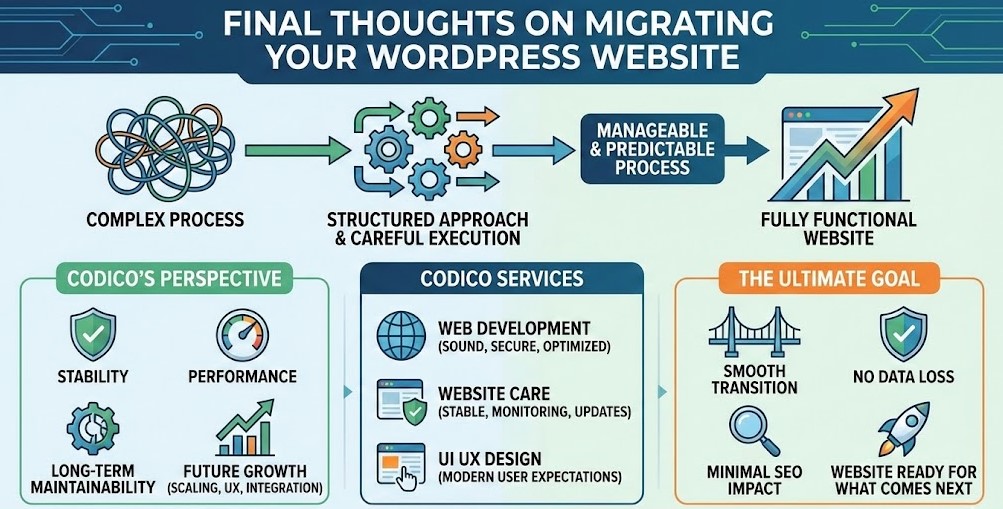
Migrating a WordPress website to a new domain may look complex at first, but with a structured approach and careful execution, it becomes a manageable and predictable process. When each step is handled correctly, you end up with a fully functional website that continues to perform well for users and search engines alike.
At CodiCo, we see domain migration not just as a technical task, but as an opportunity to improve stability, performance, and long-term maintainability. A well-executed migration lays the groundwork for future growth, whether that means scaling your platform, refining user experience, or integrating new tools and services.
For businesses that want extra confidence during or after a migration, our Web Development services help ensure that everything is technically sound, secure, and optimized for performance. Ongoing Website Care allows your site to remain stable after the move, with regular monitoring, updates, and proactive maintenance. And when a migration leads to design improvements or usability updates, our UI UX Design expertise helps align your website with modern user expectations.
No matter which migration method you choose, the goal is always the same. A smooth transition, no data loss, minimal SEO impact, and a website that is ready for what comes next. With the right planning and the right technical support, moving to a new domain becomes a strategic step forward rather than a risky change.
If you are planning a domain migration or looking to improve your WordPress website beyond the basics, CodiCo is here to support every stage of the journey.