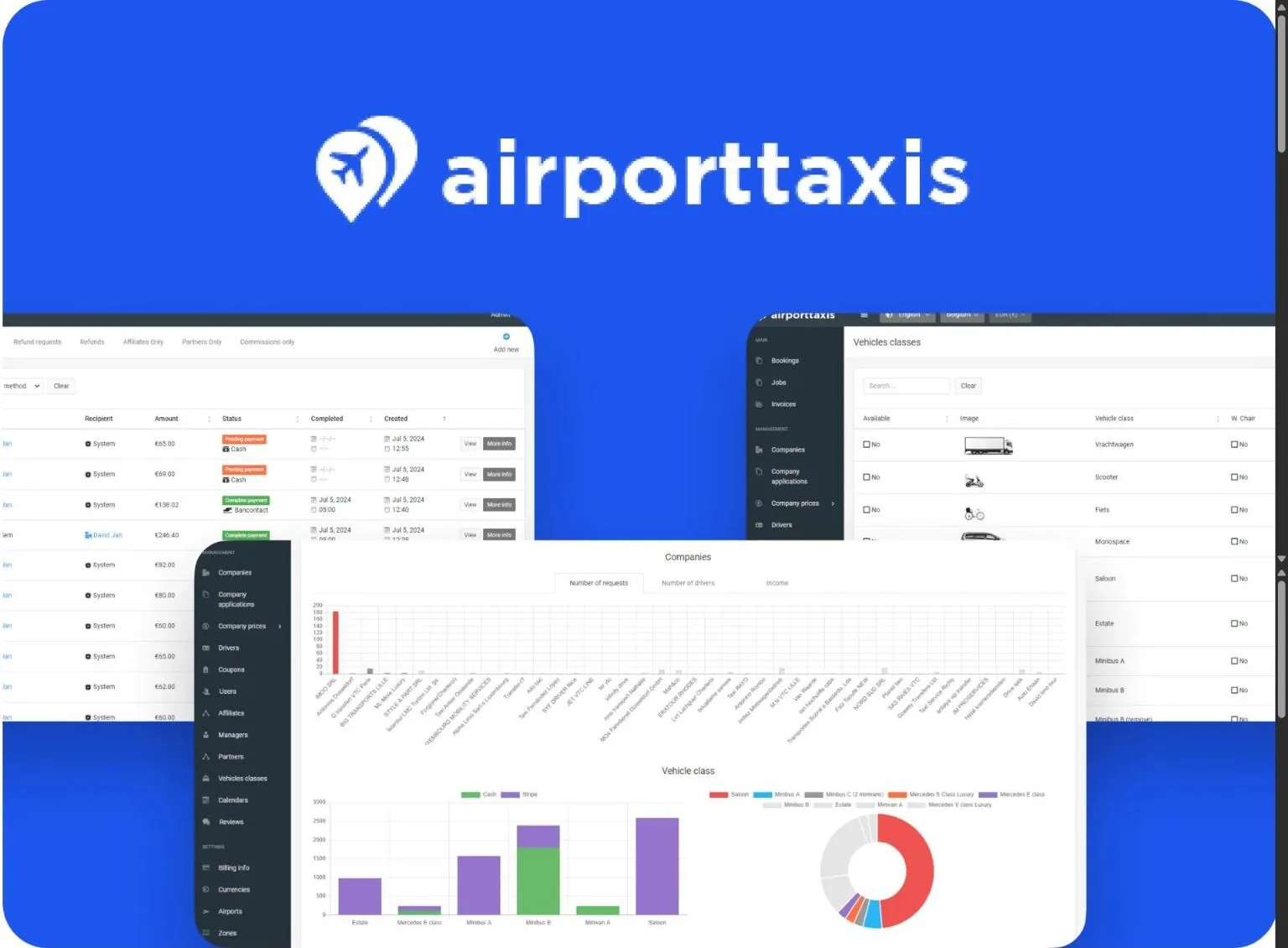
0:02hello everyone in this video I’ll show you how to set up Google Calendar integration with our platform what you need to do and guide you step by step on syncing our system with Google Calendar to set it up first we need to log into the Google Cloud console with our Gmail account we will need to create a project let’s name it something thing it’s demo project codo it’s being created right now the project is created we select it the next step is to add billing details if they haven’t been added before you’ll need to add them so I’ve added my billing details after that we need to go to the apis and services section let’s go there and make
1:18sure our demo project is selected and first go to the library section here in the search we need to type calendar two options will appear in the results we need to select Google Calendar API click on it go to it and here we need to activate the service click enable wait for it to activate all set the service is activated after this go to the credential section and here we first need to create authentication client IDs for this click the create credential button and select authentication client ID it asks us to set up our branding first name it as our integration app will look let’s name it demo CodiCo our support email will be like this this will be the
2:40audience and accept the agreement after this click create next we have branding here we can upload our logo here specify the privacy policy let’s do this so we filled it out application homepage it’s demo doodo privacy policy page terms page transition domain we can also leave it as demo it asks for the parent domain click save the audience is saved internal publish
3:58app there’s basically nothing else needed here no clients yet data access add access calendar so right here to the calendar and select the calendar address update for some reason it didn’t take oh because I didn’t select it sorry update here continue it is added for us and here with the calendar save at the very end you can send a request for verification all right here we now for verification we return to our API and services credentials and try to create an application client ID again now it allows us to create it select an application here we give a name as our
5:15application will be called for me it will be demo CodiCo we give the address of our system in this case our system is called demo. Cod code. and URL remove the last slash and an important Point here you also need to add HTTP Local Host enter similar addresses here below Local Host if you are already using your own URL then you need need to enter your own URL here or if you already know in advance under which your own URL the system will be available then here and below for redirect you can already add the domain under which the system will work I only have these two for now meaning my system works and is available under this domain plus I add Local Host and here similarly press create we have created the authentication client ID now we need to create a service account press create credentials select service account again give some
6:32arbitrary name for me it will be demo Cod too continue select roll select current used owner press continue in the last step we basically don’t need to fill anything we can skip it press data all right after our service account is created click on it and go to its settings here we basically don’t need to change anything permissions are not needed we need the case tab go to it and press add key create new key and select the recommended Json format press the create button after which as you can see the Json file is downloaded we will need it later press close after this return back to the API and services tab under the credential subsection here are our keys copy our authorization client ID you can go to it
7:47again make sure we set everything up that branding is set up that we have the name of our app that we have a support email put a logo links to privacy policy turn terms of condition and so on that we have all this set after which return back to the credential section and copy the client ID copied next we need to go to our system and in the settings General section there is a field Google calendar ID paste our copied client ID here below there is a field Google API calendar service ACC here we need to select the same Json file that we saved on our computer open next scroll down press save all settings saved after this you need to go to the calendar section and log in with our Gmail account press the authorized button a popup appears with our emails select our email the verification process occurs after
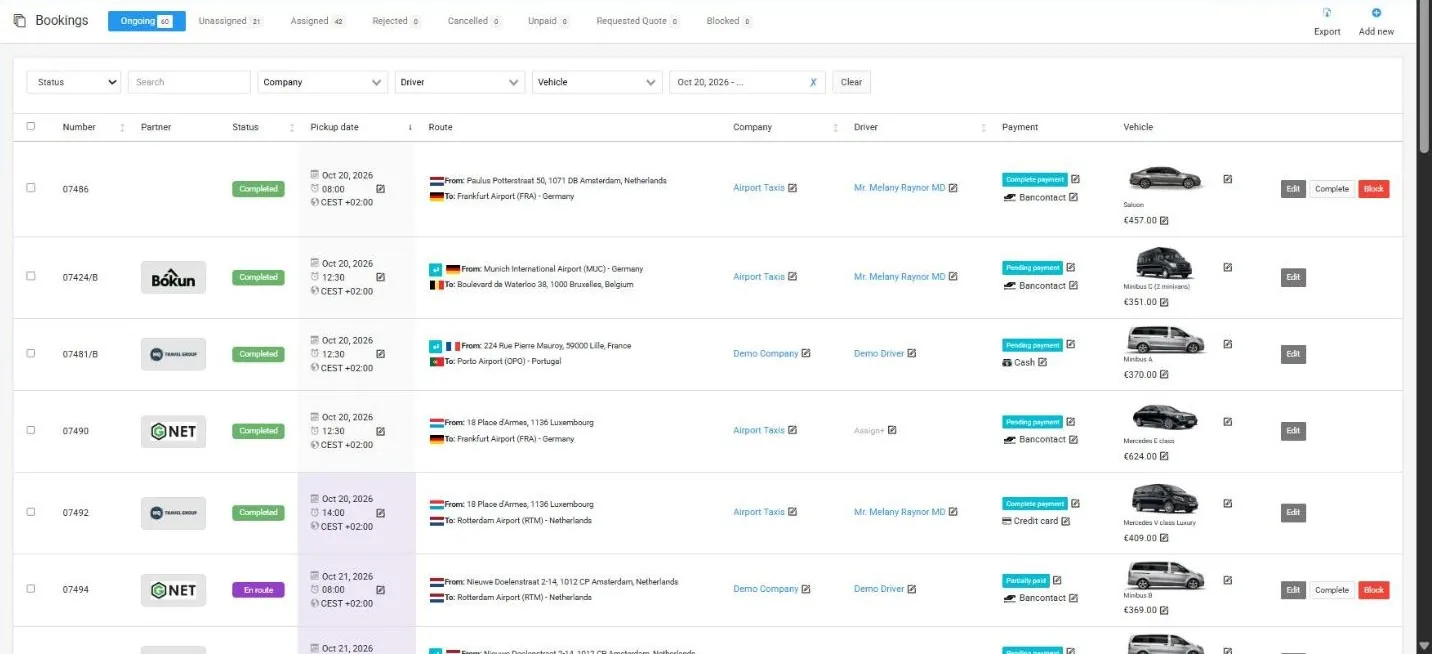
9:02which the calendar appears it is advisable to go to the dashboard after this press sync bookings to sync you can refresh the tab we see that the company is such and such booking for the 23rd for the 7th click see booking details company my taxi see other Bings appeared on the 3rd on the 5th company Grant and so on let’s check our updated Google Calendar our bookings aren’t in this Google calendar yet why is this we need to add them here after logging in and syncing bookings we can sync companies too press get calendar sync booking everything stays the same for now no changes have happened after logging in we’ll get an email to add these Calenders to Google let’s check the email here’s an example
10:20email we can add to the calendar click and it adds it offers to add I say yes add it imported I think I imported to the wrong Google Calendar yes add see a new calendar with our company appeared and its bookings are now in our Google calendar next one same here AdSense calendar copy link open it here switching I have multiple accounts so I switch between them added my taxi appeared now I see here are the bookings everything added let’s add the third one too press immediately switch between accounts
11:38switch between accounts to use it in Google Calendar for notifications add these companies calendars they’ll come as an email invitation press add this calendar and they’ll sync and appear here let’s try managing a calendar see how calendars update after booking operations for example my taxi 0.0 has an order on March 25th 0.05 let’s find it 0.05 order here it is 0.05 order let’s complete it press order completed after completion
12:56cancellation or deletion these orders orders will disappear only current orders show in the calendar let’s open my booking taxi here it still stands let’s do a refresh let’s do sync bookings synchronized opening switching to my taxi we see that in 25 26 hours booking disappeared it’s not Rel and accordingly if we open our calendar and it’s already gone here too so it’s not here you see already we can for example take another one here’s March 8th order 099 let’s go to job find this order for March 8th here it is R9 on March 8th and let’s try to cancel it too let’s cancel it personal reason all done we canceled the order as we see there’s no order for March 8th anymore let’s go to our calendars check it
14:12here on March 8th which company was this order from 0.19 it’s 7th it’s still there we’ll switch to the dashboard let’s do booking Sync here it is you see it disappeared on its own all done it’s gone after you do booking sync it disappears and synchronizes everywhere accordingly we switch here to refresh well it’s not here either you see and now all done this is how you can set up a connection between your Google calendar and our system this is how you can create your credentials for integration and actually here’s a step-by-step guide on how to do all this and how it works thank you all for your attention