
















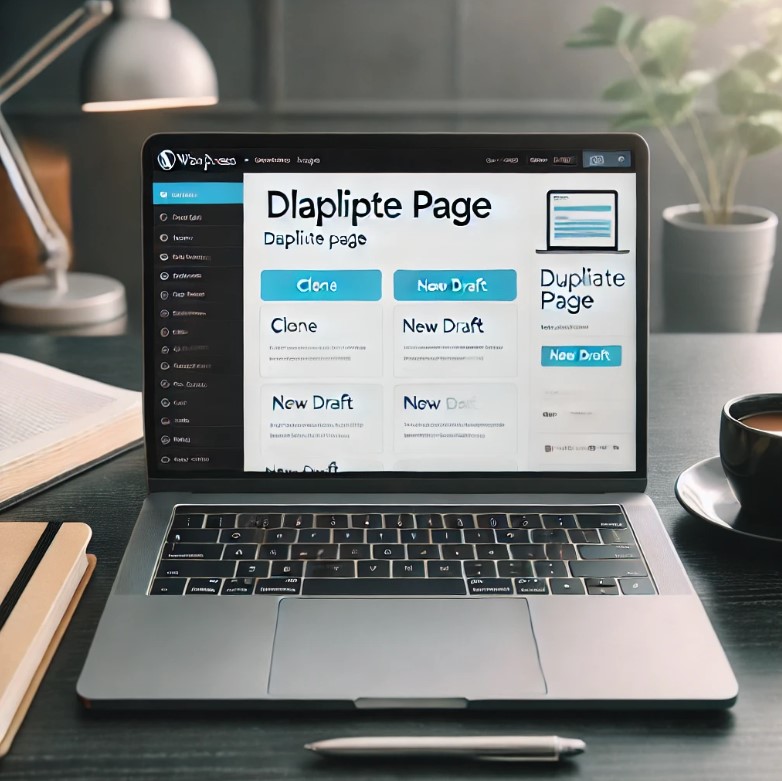
Duplicating a page in WordPress can be incredibly useful when you need to create multiple pages with a similar structure or content. Whether you’re redesigning a site, setting up templates, or testing changes without affecting the live version, having a quick and easy way to clone pages can save you a lot of time.
In this guide, we’ll cover different methods to duplicate a page in WordPress, including using plugins, manual copying, and custom code.
Why Duplicate a Page in WordPress?
There are several reasons why you might want to duplicate a page in WordPress:
- Preserve Formatting and Layout – If you have a complex page design, duplicating it ensures you don’t have to recreate everything from scratch.
- Make Safe Edits – Test changes on a copy before applying them to the live page.
- Speed Up Page Creation – Use an existing page as a template for new pages.
- A/B Testing – Duplicate a page to test variations of content and design.
Now, let’s explore different ways to duplicate a page in WordPress.
Method 1: Using a Plugin (Recommended for Beginners)
The easiest way to duplicate a page is by using a WordPress plugin. There are several options, but the most popular and reliable ones include:
1. Duplicate Post Plugin (Yoast Duplicate Post)
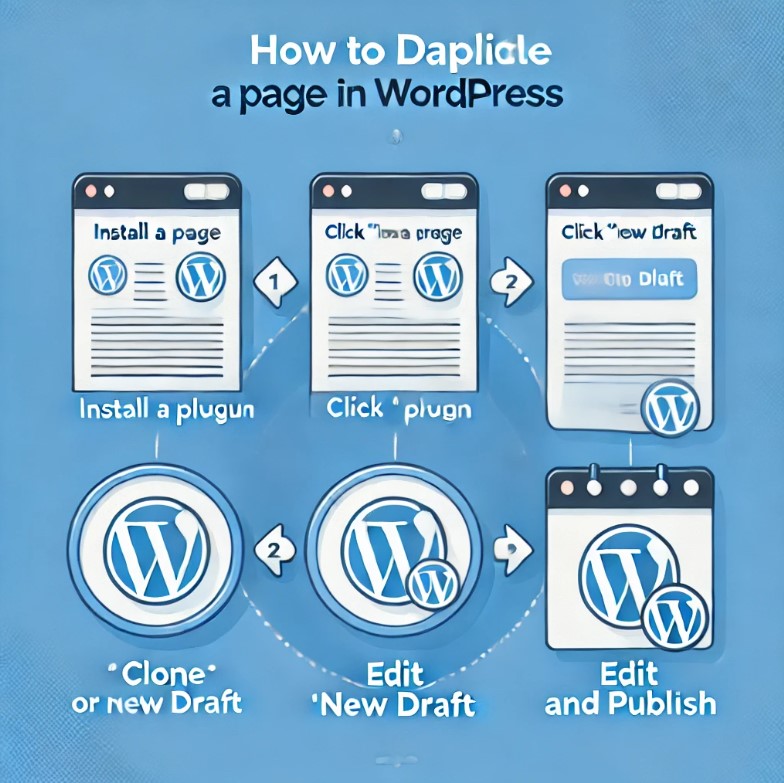
This free plugin allows you to clone posts and pages with one click. Here’s how to use it:
- Install the Plugin
- Go to your WordPress dashboard.
- Navigate to Plugins → Add New and search for Yoast Duplicate Post.
- Click Install Now and then Activate the plugin.
- Duplicate a Page
- Go to Pages → All Pages in the WordPress dashboard.
- Hover over the page you want to duplicate.
- Click Clone to create an exact copy or New Draft to open the duplicate in the editor.
- Edit and Publish
- The duplicate page will appear in your pages list. You can edit it as needed before publishing.
2. Duplicate Page Plugin
Another great option is the Duplicate Page plugin, which offers a similar cloning feature. Install it from the WordPress plugin repository, activate it, and then follow the same steps to duplicate pages.
Pros of Using a Plugin
✔️ Quick and easy to use
✔️ No technical skills required
✔️ Works with both classic and block editors
Cons
❌ Adds extra plugins to your site (which may affect performance if too many are installed)
Method 2: Manually Copying and Pasting Content (Simple but Limited)
If you don’t want to install a plugin, you can manually copy and paste content from one page to another. Here’s how:
- Open the Original Page
- Go to Pages → All Pages and open the page you want to duplicate.
- Copy the Content
- Switch to the Text Editor (Classic Editor) or Code Editor (Block Editor) and copy the entire content.
- Create a New Page
- Go to Pages → Add New, paste the copied content, and update the settings.
- Adjust Settings
- Manually set the featured image, SEO settings, and page attributes.
Pros of Manual Copying
✔️ No need for extra plugins
✔️ Works well for simple pages
Cons
❌ Doesn’t copy page settings like SEO metadata, featured images, or custom fields
❌ More time-consuming
Method 3: Using Custom Code (For Advanced Users)
If you prefer a more automated approach without relying on plugins, you can add custom code to your theme’s functions.php file. Here’s how:
Add the Following Code: Open functions.php
Go to Appearance → Theme File Editor and open functions.php.
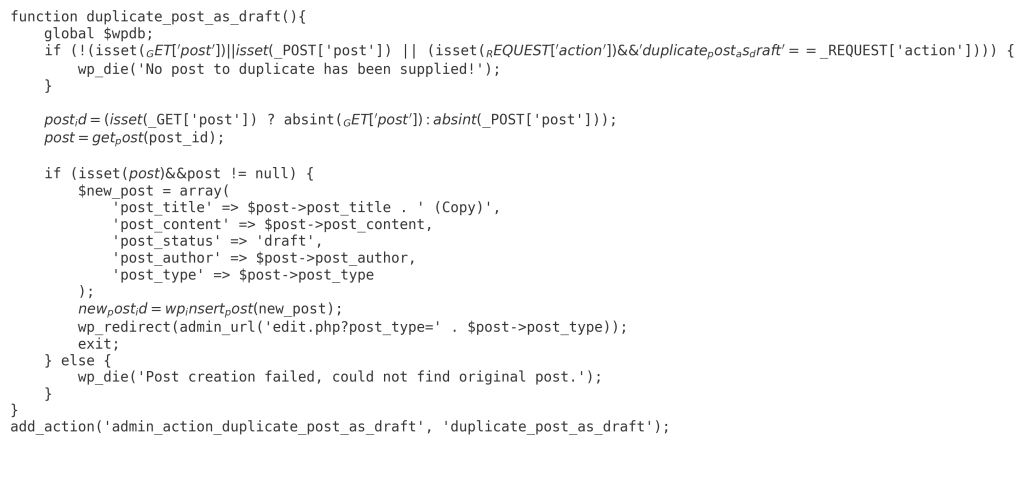
- Save and Apply
- Save the file, then go to All Pages in your dashboard.
- Hover over a page, and you’ll see an option to “Duplicate as Draft.”
Pros of Using Custom Code
✔️ No extra plugins required
✔️ Automates the duplication process
Cons
❌ Requires coding knowledge
❌ Any mistake in the functions.php file can break the site
Best Method for Different Users
- For Beginners: Use a plugin like Yoast Duplicate Post.
- For Simple Pages: Copy-paste the content manually.
- For Developers: Add custom PHP code.
No matter which method you choose, duplicating a page in WordPress can significantly improve your workflow, making it easier to create and manage content efficiently.
If you’re looking to create a new website or improve your existing one, our team at CodiCo is here to help. We specialize in web development, design, and custom solutions tailored to your needs. Contact us today to take your website to the next level!